The new Ubuntu is here 2 days ago. I was using Natty Narwhal (11.04) and didn’t take any risk to use Gnome 3 there. But I couldn’t resist myself to switch to Gnome 3 this time. Here are some things I did after installing 11.10 -
[Note: If you are in Bangladesh, change the default mirror to Main Server or Server for United States, it’ll save a lot of troubles]
1. Update your repository first
sudo apt-get update2. Install restricted extras package for audio/video codec support and Vlc
sudo apt-get install ubuntu-restricted-extras vlc3. Surely you want to switch to Gnome 3, aren’t you?
sudo apt-get install gnome-shell4. Install Gnome shell Tweak tool
sudo apt-get install gnome-tweak-tool
5. You might be very familiar with Synaptic package manager like me, install it
sudo apt-get install synaptic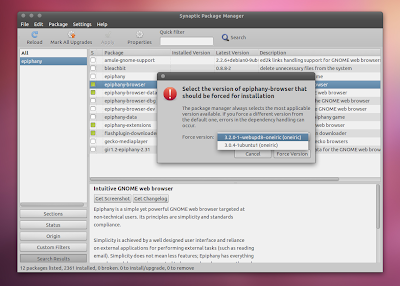
6. You might need this file previewer for nautilus, it’s nice
sudo apt-get install gnome-sushi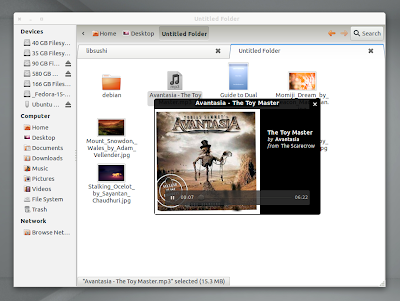
7. To run a quick application launch command, Alt+F2 is the most useful thing. But it didn’t work for me like many others. To fix it, open “System Settings” => Keyboard => Shortcuts => System, click “Disabled” next to “Show the run command prompt” and press ALT+F2. This should set ALT + F2 for running the command prompt.
8. Webupd8 team has a nice repository for gnome3 shell extensions, add that repository
sudo add-apt-repository ppa:webupd8team/gnome3
sudo apt-get update
sudo apt-get install gnome-shell-extensions-user-theme gnome-shell-extensions-alternative-tab gnome-shell-extensions-dock gnome-shell-extensions-drive-menu gnome-shell-extensions-pidgin gnome-shell-extensions-system-monitor gnome-shell-extensions-weather gnome-shell-extensions-windows navigator
9. You’ll not see any maximize, minimize buttons in the titlebar. If you are habituated by using the menu in the left side of the window, let’s get those buttons and move them to the left. Open gconf-editor by pressing Alt+F2 and enter gconf-editor as the command. And open just like the image. Set the value of button_layout as “close,maximize,minimize:”.

10. Install google chrome
wget -q -O - https://dl-ssl.google.com/linux/linux_signing_key.pub | sudo apt-key add -
sudo sh -c 'echo deb http://dl.google.com/linux/chrome/deb/ stable main >> /etc/apt/sources.list.d/google.list'
sudo apt-get update
sudo apt-get install google-chrome-stable
11. Hotot is my favorite twitter client, you might love it
sudo add-apt-repository ppa:hotot-team
sudo apt-get update && sudo apt-get install hotot
12. If you have some drives with NTFS file-system, let’s mount them automatically
sudo apt-get install ntfs-config ntfs-3g halthen press Alt+F2 and enter the command “ntfs-config” to open the Gui
13. Install pidgin, I hate empathy
sudo apt-get install pidgin14. If you are a Bangladeshi user like me and use probhat or unijoy keyboard layout, let’s grab the m17-db, as the layouts are missing in this version
sudo apt-get install ibus ibus-m17n m17n-db m17n-contrib ibus-gtkNow you can use probhat or unijoy or inscript using ibus. The default keyboard has also probhat keyboard support, but I like to use ibus. iBus doesn’t run every time you login in ubuntu, so we need to run it on startup. Goto “Startup Applications” => click the button: Add and input the data like this:
Name: IBus daemon
Command: /usr/bin/ibus-daemon -d
Comment: start IBus daemon when Gnome starts
15. You might need to install build essential package if you are related to programming and geany
sudo apt-get install build-essential geany16. Install skype
sudo apt-get install skype17. Shutter is a great tool for taking screenshots
sudo apt-get install shutter18. You can install tasksel. It helps to install a bunch of things at once. Like installing LAMP server with sudo tasksel install lamp-server. But before this, you need to install tasksel
sudo apt-get install taskselThat’s the all thing I can remember right now.
Some shell tips:
- You can start screencast recording in gnome3 by pressing Ctrl+Alt+Shift+R. It’ll save in your home folder in webm format.
- Launch any program by pressing windows key and typing the program name
- In Gnome3, at first you have to logout and then you can shutdown/restart your computer. But clicking at your username in top-right corner at the screen and pressing Alt key will change the option named the “Suspend” into a “Power Off” menu item.
18 thoughts on “Things to do after installing Ubuntu 11.10 Oneiric Ocelot”
#9, just check gnome tweak tool, u r 1 click away to enable close,maximize,minimize!
There has already an extension to make the Power Off option visible always. Google it.
Can you move the button from right side to left with gnome tweak tool?
Why in earth I will want to do that? :O
Because you are not a Ubuntu user ;)
I am using the button in left side since Ubuntu started it. Now I am flexible with it, so I want that :D
Oh, right. I totally forgot about the left side button.
You forgot to mention the 'number 0' thing to do - Connect to the internet first! :P
I've neither used Gnome3 nor Unity. But from the various web review, it seems that, Unity has been more matured now and will be more during the next LTS release (which I am aiming at). When Natty released almost everyone cursed Canonical and Ubuntu... people even tried switching to Arch! This time the scenario is quite different - people are pacified with the Oneiric release. Hope Precise will be a blast.
(BTW ... didn't like the captcha thing below the comment box, I am trying for the fourth time to submit this comment :( )
I was using unity and was using without any trouble. I was quite familiar with it. But didn't installed Gnome Shell on natty, cause it was not *recommended*, might caused trouble. So I decided to not to install it. As Oneiric released, couldn't wait this time. Although switching the distro version so frequently is very unproductive for me, but couldn't wait for gnome shell. I'll stick with gnome shell this time.
I was getting too much spam, so reCaptcha is here. Although the text
kinda irritating, sorry for that :(
Thanks Tarek vai for the post. specially for gnome-shell and unijoy config.
Can you tell a little bit more about gnome-shell-extensions !! I did all what you mentioned in this post but sill have no change. You can give me links you recommended.
Sorry for the stupid question.
I found the way to active the option for gnome shell extensions. It's on gnome tweak tool under the shell extensions section.
Yes, Gnome tweak is for activate/deactivate 'ing those extensions :)
This completely crashed out my system.
I think that `gnome-shell-system-monitor` extension caused you the trouble. Initially I had no problem with that. But there was an update of that extension, activating it caused the system broken. Then I uninstalled it via terminal and then everything was fine.
gconf-editor is not installed by default! That's a kind weird! Didn't know abaou gnome-sushi and Ctrl+Alt+Shift+R thing! Thanks! :)
Another thing on point 9:
May be forgot to add the picture you mentioned of! It's /desktop/gnome/shell/windows :)
He he, good catch ;)
Added it now, I forgot :)
Nice article... very helpful...
Whenever, wherever I try ubuntu (fresh installation), I type one thing for real: "things to do after installing ubuntu, tareq".
Thanks very much.
Nice :D